Ameerpet Hyderabad

Call Now : 9390612347

Dilsukhnagar Hyderabad

Call Now : 8096061003

Mehdipatnam Hyderabad

Call Now : 9000709021

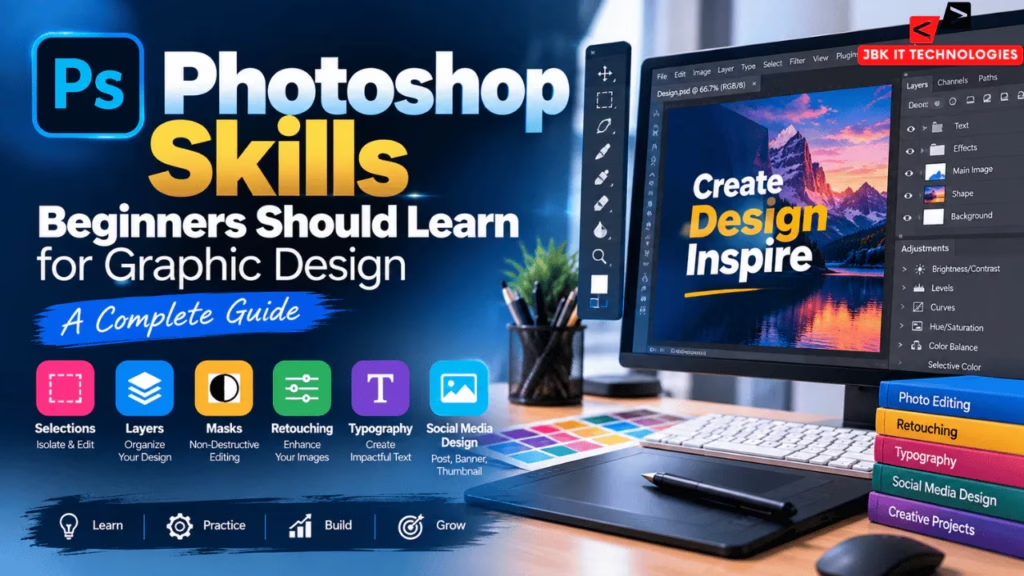
Photoshop Skills Beginners Should Learn for Graphic Design

Adobe Photoshop is one of the most widely used creative tools for working with images and digital graphics. It can be used for photo editing, retouching, posters, social media creatives, promotional graphics, composites and many other design tasks.

For someone who is just starting, Photoshop can initially feel overwhelming. The software contains many tools, panels, menus, adjustment options and creative features.

The solution is not to learn every Photoshop tool at once.

Instead, beginners should focus on the core Photoshop skills that are repeatedly used in real design projects.

Adobe’s beginner guidance introduces skills such as creating documents, working with layers, using masks, making selections, removing unwanted elements, adding text, working with shapes and saving/exporting designs.

This guide explains the most important Photoshop skills for beginners, including layers, selections, masks, retouching, color correction, typography, image resizing, social media design and file export.

What Is Photoshop?

Adobe Photoshop is an image editing and design application used for editing photographs, creating graphics, designing posters and producing digital artwork.

Beginners can use Photoshop to create:

  • Social media posts
  • Posters
  • Banners
  • Flyers
  • YouTube thumbnails
  • Website graphics
  • Advertisements
  • Photo edits
  • Product images
  • Digital artwork
  • Composite images

Adobe’s beginner guide specifically highlights Photoshop for creating posters, flyers, infographics, photo edits, portfolios and social media projects.

Photoshop is therefore useful not only for photographers but also for graphic designers, social media designers, content creators and digital marketers.

Why Should Beginners Learn Photoshop?

Photoshop provides a broad set of tools for manipulating images and building visual compositions.

Learning Photoshop can help beginners develop skills in:

  • Image editing
  • Photo retouching
  • Composition
  • Typography
  • Color correction
  • Layout design
  • Digital advertising
  • Social media graphics
  • Image manipulation
  • Creative problem-solving

However, simply knowing where a tool is located is not enough.

A good designer needs to understand how and when to use the tool.

For example, knowing the Move Tool is easy.

Knowing how to use layers, masks and selections together to create a clean composite requires more practical understanding.

Photoshop Skills Beginners Should Learn

A beginner’s Photoshop learning roadmap can be divided into several important skill areas:

  1. Photoshop interface
  2. Document setup
  3. Basic selection tools
  4. Layers
  5. Layer masks
  6. Smart Objects
  7. Image resizing
  8. Cropping
  9. Color correction
  10. Retouching
  11. Typography
  12. Shapes and graphics
  13. Blend modes
  14. Compositing
  15. Social media design
  16. File organization
  17. Export settings
  18. Practical project creation

1. Learn the Photoshop Interface

The first skill beginners should learn is understanding the Photoshop workspace.

You don’t need to memorize every panel.

Start with the tools you use most frequently.

Important areas include:

  • Toolbar
  • Options bar
  • Layers panel
  • Properties panel
  • Adjustments
  • History
  • Navigator
  • Canvas
  • Menu bar

Learn what each area does and how it contributes to the editing workflow.

Beginner Practice

Open an image and identify:

Toolbar → Canvas → Layers → Properties → Options

Then experiment with moving panels and changing the workspace.

The goal at this stage is familiarity.

2. Learn Practical Business Transactions

Before designing anything, you need to understand document setup.

Important settings include:

  • Width
  • Height
  • Resolution
  • Color mode
  • Background
  • Orientation

For example, a social media post might require a different canvas size from a YouTube thumbnail or a printed poster.

Adobe’s beginner Photoshop guide recommends choosing the document size and resolution according to the intended project.

Example Projects

Instagram Post

Use a square canvas.

Instagram Portrait Post

Use a vertical canvas.

YouTube Thumbnail

Use a wide 16:9 canvas.

Print Poster

Use dimensions and resolution appropriate for the final print requirement.

Learning document setup prevents many problems later.

3. Learn Selection Tools

Selections are one of the fundamental Photoshop skills.

A selection allows you to isolate a specific area of an image so that you can edit it without affecting other areas.

Adobe describes a selection as an area of an image defined for manipulation while leaving unselected areas untouched.

Beginners should understand tools such as:

  • Marquee Tool
  • Lasso Tool
  • Polygonal Lasso
  • Quick Selection
  • Object Selection
  • Select Subject

You don’t need to master every selection technique immediately.

Start with simple objects.

Practice Example

Take a product image.

Try selecting:

Product → Background → Shadow

Then practice changing each area independently.

4. Learn Layers

Layers are one of the most important Photoshop concepts for beginners.

Think of layers as transparent sheets placed on top of each other.

You might have:

Layer 1 — Background

Layer 2 — Product

Layer 3 — Shadow

Layer 4 — Text

Layer 5 — Logo

Each element can be edited separately.

Adobe’s beginner guidance describes layers as a fundamental part of Photoshop projects because they allow individual elements to be adjusted without affecting other layers.

Learn These Layer Skills

  • Create a layer
  • Rename a layer
  • Duplicate a layer
  • Delete a layer
  • Group layers
  • Reorder layers
  • Hide/show layers
  • Lock layers
  • Adjust opacity
  • Use blending modes

Good layer organization becomes increasingly important as projects become more complicated.

5. Learn Layer Masks

Layer masks are another essential Photoshop skill.

A mask allows you to hide or reveal portions of a layer without permanently deleting the original content.

Adobe’s current documentation explains that layer masks can hide or reveal parts of a layer using selections, transparency or painting.

The basic principle is:

White = Reveal

Black = Hide

Gray = Partial transparency

This makes masks extremely useful for non-destructive editing.

Example

Suppose you want to replace the background of a product photo.

Instead of erasing the background permanently:

Select Product → Create Mask → Hide Background → Add New Background

You can continue refining the mask later.

6. Understand Non-Destructive Editing

One of the most valuable Photoshop habits for beginners is learning to edit non-destructively.

Non-destructive editing means making changes in a way that allows you to modify or reverse them later.

Examples include:

  • Layer masks
  • Adjustment layers
  • Smart Objects
  • Separate editing layers
  • Keeping an original copy

Adobe recommends maintaining editable workflows because layers and masks allow changes without permanently damaging the original image.

Bad Workflow

Original Image → Erase Everything → Save

Better Workflow

Original Image → Duplicate → Mask → Adjust → Save PSD

This gives you much more control.

7. Learn Cropping and Image Resizing

Image resizing is a basic skill that every Photoshop beginner should understand.

You should know the difference between:

  • Crop
  • Resize
  • Canvas size
  • Resolution

Crop

Removes unwanted areas from the composition.

Image Size

Changes the dimensions of the image.

Canvas Size

Changes the working area around the image.

For example, you may have a landscape photograph that needs to become a portrait social media graphic.

You may need to crop the image and adjust the canvas to fit the new design.

8. Learn Color Correction

Color is a major part of photo editing and graphic design.

Beginners should learn how to control:

  • Brightness
  • Contrast
  • Exposure
  • Saturation
  • Vibrance
  • Hue
  • Temperature
  • Shadows
  • Highlights

Photoshop provides adjustment tools for controlling color and tone. Adobe’s current photo-editing guidance describes adjustment layers as a core part of Photoshop editing, including tonal and color changes.

Example

A photograph might appear:

  • Too dark
  • Too yellow
  • Too blue
  • Too dull
  • Too saturated

Instead of applying random filters, learn to identify the problem and make targeted adjustments.

9. Learn Adjustment Layers

Adjustment layers are particularly useful because they allow you to change the appearance of an image without directly modifying the original pixels.

Important adjustments include:

  • Brightness/Contrast
  • Levels
  • Curves
  • Hue/Saturation
  • Color Balance
  • Black & White
  • Vibrance

For beginners, start with:

Brightness/Contrast → Levels → Hue/Saturation → Curves

Once you understand these, you can explore more advanced color workflows.

10. Learn Photo Retouching

Retouching is one of the most common Photoshop applications.

Beginners should learn how to:

  • Remove small blemishes
  • Clean unwanted spots
  • Correct minor imperfections
  • Improve skin appearance
  • Remove distracting objects
  • Fix small image defects

Useful tools include:

  • Spot Healing Brush
  • Healing Brush
  • Clone Stamp
  • Remove Tool
  • Patch Tool

Adobe’s current Photoshop guidance includes removing unwanted objects and cleaning up photographs as core beginner editing tasks.

Important Rule

Don’t over-retouch.

Good retouching should usually look natural.

11. Learn the Clone Stamp Tool

The Clone Stamp Tool allows you to sample pixels from one area and paint them into another.

It can be useful for:

  • Removing objects
  • Rebuilding backgrounds
  • Cleaning textures
  • Fixing damaged areas
  • Repeating patterns

Practice

Take a photograph containing a small unwanted object.

Duplicate the original layer.

Use the Clone Stamp to sample a nearby clean area and carefully cover the unwanted element.

This helps you understand how texture and lighting need to be matched.

12. Learn Typography

Photoshop isn’t only for photo editing.

It is also frequently used to create graphics containing text.

Beginners should learn:

  • Type Tool
  • Font selection
  • Font size
  • Font weight
  • Alignment
  • Character spacing
  • Line spacing
  • Text hierarchy
  • Text color
  • Text placement

Adobe’s beginner material includes adding and customizing text as an essential Photoshop skill.

Basic Typography Hierarchy

For a promotional design, you might use:

Main Heading

↓

Supporting Text

↓

Details

↓

CTA

The typography should make the information easy to understand.

13. Learn Shapes and Basic Graphic Elements

Photoshop can also be used to create graphic elements.

Beginners should understand:

  • Rectangle Tool
  • Ellipse Tool
  • Custom Shapes
  • Fill
  • Stroke
  • Gradients
  • Basic alignment

These tools can help create:

  • Buttons
  • Cards
  • Background elements
  • Icons
  • Borders
  • Design accents

Adobe’s beginner graphic-design tutorials also introduce shapes, text, layers and effects as part of basic Photoshop design workflows.

14. Learn Blend Modes

Blend modes determine how one layer interacts with the layers underneath it.

Common blend modes include:

  • Normal
  • Multiply
  • Screen
  • Overlay
  • Soft Light
  • Color
  • Luminosity

Beginners don’t need to memorize every blend mode.

Start with:

Multiply

Useful for darkening and combining shadows.

Screen

Useful for brightening and combining light effects.

Overlay

Useful for contrast and texture effects.

Experiment with simple images to understand how they behave.

15. Learn Image Compositing

Compositing means combining multiple visual elements into a single image.

For example:

Person + Background + Lighting + Shadow + Text

can become one promotional design.

Good compositing requires:

  • Accurate selections
  • Layer masks
  • Color matching
  • Lighting consistency
  • Perspective
  • Shadows
  • Blending
  • Composition

Layer masks are particularly important when combining images because they allow different parts of layers to be revealed or hidden.

16. Learn Background Removal

Background removal is a useful Photoshop skill for graphic design.

It is commonly required for:

  • Product images
  • Portraits
  • Posters
  • Advertisements
  • E-commerce graphics
  • Social media creatives

You can practice using selection tools and masks.

A typical workflow is:

Select Subject

↓

Refine Selection

↓

Create Layer Mask

↓

Add New Background

↓

Adjust Color

↓

Add Shadow

This teaches several Photoshop skills simultaneously.

17. Learn Social Media Design

If you are interested in graphic design, social media design is an excellent area for practice.

You can create:

  • Instagram posts
  • Instagram carousels
  • Promotional graphics
  • Event announcements
  • Quote graphics
  • Product promotions
  • Educational posts
  • Story designs
  • YouTube thumbnails

For example, imagine a training institute wants a promotional post for an upcoming course.

The design may contain:

Course Name

Key Benefit

Short Description

Visual

CTA

The challenge is making all of this readable without making the design overcrowded.

18. Learn Design Hierarchy

Photoshop skills are not only about technical tools.

You also need to understand basic design principles.

Important concepts include:

  • Visual hierarchy
  • Alignment
  • Contrast
  • Balance
  • Spacing
  • Repetition
  • Proximity
  • Scale
  • Color consistency

For example, if every piece of text has the same size, viewers may not know where to look first.

A better structure might be:

Large Heading

Medium Supporting Text

Small Details

CTA

This creates a clear visual path.

19. Learn Color Theory

Graphic designers need to understand how colors work together.

Begin with:

  • Primary colors
  • Secondary colors
  • Complementary colors
  • Analogous colors
  • Warm colors
  • Cool colors
  • Contrast
  • Saturation

You should also understand how color can communicate different visual moods.

For example:

Blue can create a corporate or technology-oriented feeling.

Orange can create energy and warmth.

Green can suggest nature, growth or freshness.

The correct color choice depends on the brand and project.

20. Learn Smart Objects

Smart Objects are useful when you want to transform or reuse content while maintaining flexibility.

They can be especially useful for:

  • Mockups
  • Product presentations
  • Repeated elements
  • Image transformations
  • Non-destructive workflows

For example, you might create a Photoshop mockup where a design is placed inside a Smart Object.

You can then replace the design while keeping the mockup structure.

21. Learn Photoshop for Product Design

Product images are another useful practice area.

A product design workflow may include:

Remove Background

↓

Correct Colors

↓

Clean Product

↓

Create Shadow

↓

Add Background

↓

Add Text

↓

Export

You can practice this with:

  • Shoes
  • Watches
  • Electronics
  • Food products
  • Cosmetic products
  • Packaging

This type of exercise helps beginners combine multiple Photoshop skills.

22. Learn Poster Design

Poster design is another good beginner project.

A poster typically contains:

  • Main headline
  • Supporting message
  • Main visual
  • Important details
  • CTA

For example:

MASTER PHOTOSHOP

Learn:

  • Photo Editing
  • Retouching
  • Graphic Design

Then use a strong visual hierarchy to guide the viewer through the content.

The objective is not to add as much information as possible.

The objective is to communicate the important message clearly.

23. Learn Export Settings

A design is not finished when you complete it on the canvas.

You also need to know how to save and export it correctly.

Important formats include:

PSD

Useful for preserving an editable Photoshop project.

JPEG

Commonly used for photographs and many web graphics.

PNG

Useful when transparency is required.

PDF

Useful for certain sharing and print workflows.

Adobe’s current documentation explains that PSD preserves layers and settings, while Photoshop’s export workflow allows designs to be exported into common formats such as JPEG, PNG and PDF.

24. Learn File Organization

Good file management becomes extremely important when working professionally.

A project might contain:

Project/
│
├── Original Images/
├── Photoshop Files/
├── Fonts/
├── Assets/
├── Exports/
└── Final/

Inside Photoshop, organize layers as well.

For example:

TEXT
   ├── Heading
   ├── Subheading
   └── CTA

IMAGES
   ├── Product
   └── Background

EFFECTS
   ├── Shadow
   └── Lighting

This makes future editing much easier.

Photoshop Skills Roadmap for Beginners

A simple learning sequence can look like this:

Level 1 — Basics

  • Interface
  • New document
  • Navigation
  • Crop
  • Resize
  • Basic tools

Level 2 — Editing

  • Selections
  • Layers
  • Masks
  • Retouching
  • Background removal

Level 3 — Color

  • Brightness
  • Contrast
  • Levels
  • Curves
  • Hue/Saturation
  • Color correction

Level 4 — Design

  • Typography
  • Shapes
  • Composition
  • Layout
  • Color theory
  • Visual hierarchy

Level 5 — Creative Work

  • Compositing
  • Mockups
  • Social media designs
  • Posters
  • Product graphics

Level 6 — Professional Workflow

  • Smart Objects
  • Non-destructive editing
  • File organization
  • Export settings
  • Portfolio projects

Beginner Photoshop Projects for Practice

One of the best ways to learn Photoshop is by creating actual projects.

Project 1: Photo Retouch

Take a portrait and practice:

  • Basic correction
  • Blemish removal
  • Skin cleanup
  • Color adjustment

Project 2: Background Replacement

Take a portrait or product image.

Remove the existing background and replace it with another environment.

Project 3: Social Media Post

Create a promotional post with:

  • Heading
  • Image
  • Supporting text
  • CTA

Project 4: YouTube Thumbnail

Create a 16:9 thumbnail with:

  • Strong headline
  • Main visual
  • High contrast
  • Clear hierarchy

Project 5: Product Advertisement

Create a promotional graphic for a product.

Practice:

  • Background removal
  • Shadows
  • Color correction
  • Typography
  • Composition

Project 6: Poster

Create a promotional poster for an imaginary event or course.

Project 7: Photo Composite

Combine two or more photographs into one realistic composition.

These projects allow you to combine individual skills into complete design workflows.

Photoshop Skills for Social Media Designers

If your goal is social media design, focus particularly on:

  • Canvas sizing
  • Image resizing
  • Background removal
  • Layers
  • Masks
  • Typography
  • Color theory
  • Visual hierarchy
  • Product editing
  • Photo retouching
  • Social media export

For example, creating an Instagram promotional design may involve:

New Document

↓

Place Image

↓

Remove Background

↓

Create Background

↓

Add Typography

↓

Add Shapes

↓

Adjust Colors

↓

Export

This is much closer to real design work than simply practicing individual tools.

Photoshop Skills for Graphic Designers

Graphic designers should eventually go beyond basic photo editing.

Important areas include:

SkillWhy It Matters
LayersOrganize design elements
MasksMake flexible edits
SelectionsIsolate objects
RetouchingImprove images
Color CorrectionCreate consistent visuals
TypographyCommunicate information
CompositingCombine visual elements
ShapesBuild graphic elements
Smart ObjectsMaintain flexible workflows
ExportPrepare final files
CompositionCreate balanced designs
Visual HierarchyGuide attention

Photoshop vs Other Design Tools

Photoshop is powerful, but graphic designers often use multiple applications.

For example:

Photoshop

Best suited to many image-editing, compositing and raster-based design tasks.

Illustrator

Often used for vector graphics, logos and illustrations.

InDesign

Commonly used for page layout and publishing workflows.

Premiere Pro

Used for video editing.

A designer may therefore use Photoshop alongside other creative applications depending on the project.

Photoshop and Graphic Design Careers

Photoshop skills can be useful in different creative roles.

Depending on your broader skills and experience, Photoshop can support work related to:

  • Graphic Design
  • Social Media Design
  • Photo Editing
  • Image Retouching
  • Advertising Design
  • Digital Marketing Design
  • Content Creation
  • E-commerce Design
  • Creative Design
  • Visual Communication

Photoshop should not be considered the entire skill set of a graphic designer.

A strong designer also needs to understand:

  • Typography
  • Composition
  • Color
  • Branding
  • Layout
  • Communication
  • Design principles

Software skills and design thinking work together.

Photoshop Course in Dilsukhnagar, Hyderabad

For learners searching for a Photoshop course in Dilsukhnagar, JBK IT Technologies currently lists Photoshop training as part of its graphic-design offerings. Its published course information describes training around photo editing, retouching and design.

If you are comparing Photoshop training in Hyderabad, look beyond the software name itself.

Check whether the learning program gives you opportunities to practice:

  • Photo editing
  • Retouching
  • Layers
  • Masks
  • Selections
  • Color correction
  • Typography
  • Social media design
  • Poster design
  • Portfolio projects
  • Export workflows

A course that combines tool knowledge with practical design projects can make the learning process easier to apply.

How Long Does It Take to Learn Photoshop?

There is no fixed learning period for everyone.

The time depends on:

  • Previous design experience
  • Practice frequency
  • Project complexity
  • Understanding of design principles
  • Familiarity with image editing

A beginner might start with basic tools and simple edits.

Then progress to:

Layers → Masks → Selections → Retouching → Color → Typography → Compositing

After that, they can begin creating complete design projects.

Consistent practice is more useful than trying to finish hundreds of tools quickly.

Common Photoshop Mistakes Beginners Make

1. Learning Every Tool at Once

Photoshop has many tools.

You don’t need to master all of them immediately.

Focus on the tools you actually use.

2. Working on a Single Layer

Beginners sometimes put everything onto one layer.

This makes editing difficult.

Use separate layers for major elements.

3. Permanently Erasing Images

Use masks when possible so you can revise the edit later.

4. Overusing Filters

A professional design doesn’t require every available effect.

Use effects with a purpose.

5. Ignoring Typography

Good images with poor typography can still produce weak designs.

6. Using Too Many Fonts

Start with one or two complementary typefaces.

7. Ignoring Resolution

Always consider where the final image will be used.

8. Not Saving the PSD

If you may need to edit the project later, preserve the editable Photoshop file.

Adobe recommends PSD when you need to retain layers and editing settings.

A Simple 30-Day Photoshop Learning Plan

Week 1 — Photoshop Fundamentals

Learn:

  • Interface
  • Tools
  • Documents
  • Canvas
  • Crop
  • Resize
  • Layers

Practice

Create simple image compositions.


Week 2 — Editing

Learn:

  • Selections
  • Masks
  • Background removal
  • Retouching
  • Clone Stamp
  • Healing tools

Practice

Complete three photo-editing exercises.


Week 3 — Graphic Design

Learn:

  • Typography
  • Color
  • Shapes
  • Layout
  • Visual hierarchy
  • Social media design

Practice

Create:

  • One poster
  • One social media post
  • One promotional graphic

Week 4 — Portfolio Projects

Create:

  • Product advertisement
  • Photo composite
  • Social media campaign
  • YouTube thumbnail
  • Creative poster

At the end of the month, you can review the projects and identify which skills require more practice.

Frequently Asked Questions

What Photoshop skills should beginners learn first?

Start with the interface, document setup, layers, selections, masks, cropping, resizing and basic image adjustments.

Is Photoshop difficult for beginners?

Photoshop can seem complicated because it contains many tools and features. Learning the core tools step by step makes the process more manageable.

Are layers important in Photoshop?

Yes. Layers are fundamental to Photoshop workflows because they allow individual elements of a design or image to be edited separately.

What is a layer mask in Photoshop?

A layer mask controls which parts of a layer are visible or hidden. White reveals, black conceals and gray can create partial transparency.

What is Photoshop used for in graphic design?

Photoshop can be used for photo editing, retouching, posters, social media creatives, composites, advertisements, thumbnails and other raster-based graphics.

Should beginners learn Photoshop for social media design?

Yes. Photoshop can be useful for creating social media graphics, promotional designs, image edits and visual content.

Is Photoshop only for photo editing?

No. Photoshop can also be used for graphic design, typography, compositing, digital artwork, advertisements and social media graphics.

What is the difference between Photoshop and Illustrator?

Photoshop is primarily a raster/image-editing application, while Illustrator is commonly used for vector graphics and illustration. Designers often use both depending on the project.

Should I learn Photoshop or graphic design first?

You can learn them together. Learning Photoshop gives you technical skills, while learning graphic design principles helps you use those tools effectively.

What projects should a Photoshop beginner create?

Good beginner projects include:

  • Photo retouching
  • Background replacement
  • Social media post
  • Poster
  • Product advertisement
  • YouTube thumbnail
  • Photo composite

How can I build a Photoshop portfolio?

Create several finished projects that demonstrate different skills rather than uploading many similar designs. Include photo editing, retouching, social media graphics, posters, composites and promotional designs.

Where can I learn Photoshop in Hyderabad?

JBK IT Technologies currently lists Photoshop training in Dilsukhnagar as part of its graphic-design course offerings.

Enquiry Form