Ameerpet Hyderabad

Call Now : 9390612347

Dilsukhnagar Hyderabad

Call Now : 8096061003

Mehdipatnam Hyderabad

Call Now : 9000709021

🪔 DIWALI DHAMAKA! UP TO 20% OFF ACCOUNTING COURSES ✦ PROGRAMMING COURSES ✦ DIGITAL MARKETING ✦ FINANCE COURSES ✦ GRAPHIC DESIGNING ✦ SAP COURSES ✦ VIDEO EDITING ENROLL TODAY! ✨

Basic Excel vs Advanced Excel: What Should Students Learn First?

Microsoft Excel is one of the most widely used spreadsheet applications in offices, educational institutions, businesses, and data-related roles. It helps users organise information, perform calculations, maintain records, analyse data, and prepare reports.

However, students and beginners often face one common question: should they learn Basic Excel or directly start with Advanced Excel?

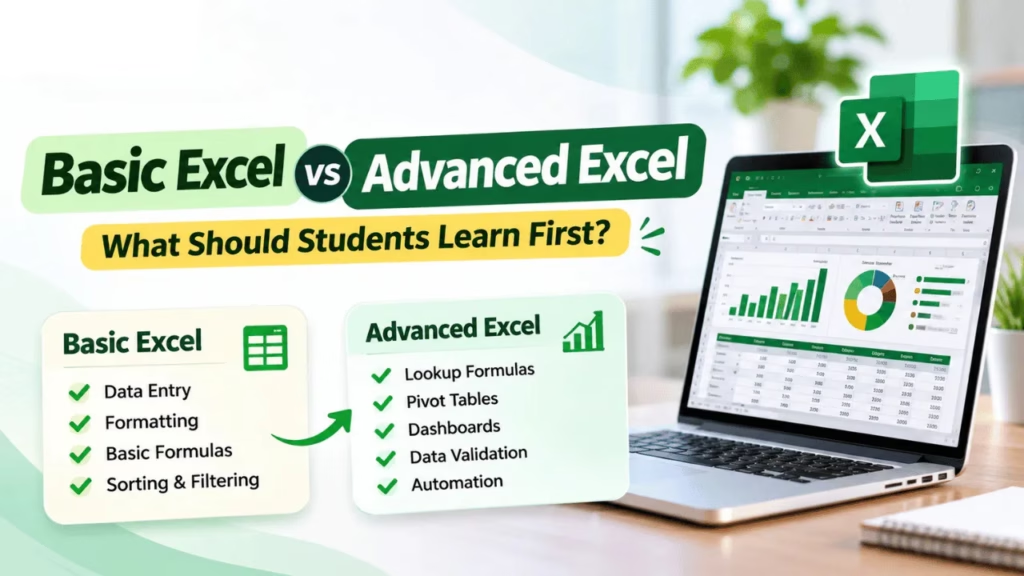
Understanding Basic Excel vs Advanced Excel is important because both levels serve different purposes. Basic Excel focuses on everyday spreadsheet operations, such as data entry, formatting, simple calculations, and basic formulas. Advanced Excel Training Institute In Hyderabad introduces more powerful features, including lookup formulas, Pivot Tables, dashboards, data validation, What-If Analysis, and automation.

For students planning to work in administration, accounting, finance, data entry, or office management, learning Excel in the right order can help build practical workplace skills.

This guide explains the differences between Basic Excel and Advanced Excel, what you should learn first, how both levels are used in jobs, and how to develop your Excel skills step by step.

1. What Is Basic Excel?

Basic Excel refers to the fundamental skills required to create, edit, organise, and manage spreadsheets.

It is generally the starting point for students who have little or no experience with Microsoft Excel.

Basic Excel helps users maintain information in rows and columns, perform simple calculations, format worksheets, and organise everyday business records.

Important Basic Excel Skills

1. Understanding Rows, Columns, and Cells

Excel worksheets contain rows and columns. Their intersection forms a cell where users enter information.

For example, a student marksheet may contain student names in one column, subject marks in other columns, and total marks in another.

2. Data Entry and Editing

Learn how to enter text, numbers, dates, and other information into cells. You should also understand how to edit, copy, move, and delete data.

3. Cell Formatting

Formatting improves the appearance and readability of spreadsheets.

Important formatting options include:

  • Font style, size, and colour.

  • Cell background colours.

  • Borders and alignment.

  • Number and date formats.

  • Currency and percentage formats.

  • Merging cells where appropriate.

4. Basic Excel Formulas

Basic formulas help perform everyday calculations.

Some commonly used functions include:

  • SUM() – Adds numbers.

  • AVERAGE() – Calculates the average.

  • MIN() – Finds the smallest value.

  • MAX() – Finds the largest value.

  • COUNT() – Counts cells containing numbers.

For example, a student can calculate total examination marks using:

=SUM(B2:E2)

5. Sorting and Filtering

Sorting arranges information in ascending or descending order. Filtering displays only records that match selected conditions.

For example, an office employee can filter an employee list to display only employees from the accounts department.

6. Creating Basic Charts

Excel allows users to convert spreadsheet data into visual representations.

Common chart types include:

  • Column charts.

  • Bar charts.

  • Pie charts.

  • Line charts.

These charts help users understand simple comparisons and trends.

7. Printing and Page Setup

Basic Excel also includes preparing worksheets for printing by adjusting margins, orientation, page size, print areas, and headers.

These skills are useful when preparing reports, lists, and business documents.

2. What Is Advanced Excel?

Advanced Excel refers to the use of more powerful spreadsheet features to analyse large datasets, automate repetitive tasks, create interactive reports, and support business decisions.

It is useful for professionals who regularly work with financial records, sales information, inventory reports, employee databases, and other business data.

Advanced Excel Training Institute In Hyderabad  builds on the foundation of basic spreadsheet operations.

Important Advanced Excel Skills

1. Advanced Excel Formulas

Advanced formulas help users perform complex calculations, retrieve information, and apply logical conditions.

Important functions include:

  • VLOOKUP() – Searches for a value in a table and returns corresponding information.

  • XLOOKUP() – Searches a range or array and returns a matching result.

  • INDEX() – Returns a value from a specified position.

  • MATCH() – Finds the relative position of a value.

  • IF() – Performs logical tests.

  • SUMIF() – Adds values based on a condition.

  • SUMIFS() – Adds values based on multiple conditions.

  • COUNTIF() and COUNTIFS() – Count records based on conditions.

  • IFERROR() – Handles formula errors with a specified alternative result.

For example, a sales executive can use SUMIFS() to calculate the total sales generated by a particular employee during a selected month.

2. Pivot Tables

Pivot Tables are used to summarise and analyse large datasets without manually calculating every result.

For example, a company may have thousands of sales records. Instead of checking each transaction individually, a Pivot Table can summarise sales by:

  • Employee.

  • Product.

  • Region.

  • Month.

  • Department.

This makes it easier to identify patterns and prepare management reports.

3. Pivot Charts

Pivot Charts provide a visual representation of Pivot Table summaries.

They are useful for presenting business information through charts that can respond to changes in the underlying Pivot Table filters.

4. Excel Dashboards

An Excel dashboard presents important business information in one organised view.

A dashboard may include:

  • Total sales.

  • Monthly revenue.

  • Product performance.

  • Employee targets.

  • Expense summaries.

  • Performance charts.

For example, a sales manager can use a dashboard to review monthly targets and identify which products are performing well.

5. Data Validation

Data Validation controls what users can enter into selected cells.

For example, an employee attendance sheet can use a dropdown list containing:

  • Present.

  • Absent.

  • Leave.

This reduces inconsistent entries and improves data accuracy.

6. Conditional Formatting

Conditional Formatting automatically changes cell appearance based on specified rules.

Examples include highlighting:

  • Sales below a target.

  • Pending payments.

  • Duplicate entries.

  • Low inventory quantities.

  • Employees with outstanding tasks.

7. What-If Analysis

What-If Analysis helps users understand how changing input values affects calculation results.

Excel includes features such as:

  • Goal Seek.

  • Scenario Manager.

  • Data Tables.

For example, a business can use Goal Seek to determine the sales quantity required to reach a particular profit target.

8. Excel Automation

Automation helps reduce repetitive manual work.

Students can explore:

  • Macros.

  • Basic VBA concepts.

  • Recorded macros.

  • Repetitive report formatting.

  • Automated worksheet operations.

Power Query is another valuable tool for importing, cleaning, transforming, and combining data from different sources.

These features help users handle recurring spreadsheet tasks more efficiently.

3. Basic Excel vs Advanced Excel: Key Differences

Although both levels use the same spreadsheet application, their capabilities and applications differ.

ComparisonBasic ExcelAdvanced Excel
Learning levelBeginnerIntermediate to advanced
Main purposeEveryday spreadsheet workData analysis and reporting
Data entryManual data entryStructured data management
FormulasSUM, AVERAGE, COUNTIF, XLOOKUP, INDEX, MATCH, SUMIFS
Data organisationBasic sorting and filteringAdvanced filtering and data analysis
ReportingSimple tables and chartsPivot Tables and dashboards
Data accuracyBasic formatting and checksData Validation and conditional rules
AnalysisSimple calculationsWhat-If Analysis and summaries
AutomationMostly manual tasksMacros, VBA and Power Query
ApplicationsBasic office recordsBusiness reports and analytical tasks

The main difference: Basic Excel helps you work with spreadsheet information, while Advanced Excel Training Institute In Hyderabad helps you analyse, summarise, and manage that information more efficiently.

4. What Should Students Learn First?

For most beginners, the recommended approach is to learn Basic Excel first and then progress to Advanced Excel.

Trying to learn advanced formulas and reporting techniques without understanding spreadsheet fundamentals can create confusion.

Follow this learning order:

Step 1: Learn Excel Fundamentals

Start with:

  • Excel interface and workbook structure.

  • Rows, columns, cells, and worksheets.

  • Data entry and editing.

  • Formatting and number formats.

  • Basic formulas and functions.

  • Saving and printing worksheets.

Practice task: Create a student marksheet with names, subject marks, total marks, and average marks.

Step 2: Practise Data Management

Once you understand the fundamentals, learn:

  • Sorting.

  • Filtering.

  • Tables.

  • Freeze Panes.

  • Removing duplicates.

  • Basic data organisation.

Practice task: Create an employee database containing employee IDs, names, departments, joining dates, and salaries. Practise sorting and filtering the records.

Step 3: Learn Advanced Formulas

Move on to logical and lookup functions.

Practise:

  • IF and nested IF.

  • SUMIF and SUMIFS.

  • COUNTIF and COUNTIFS.

  • VLOOKUP and XLOOKUP.

  • INDEX and MATCH.

  • IFERROR.

Practice task: Prepare a sales report that calculates employee-wise sales, identifies target achievements, and retrieves product prices.

Step 4: Learn Pivot Tables and Dashboards

After developing formula skills, learn to summarise datasets.

Practise:

  • Creating Pivot Tables.

  • Grouping dates.

  • Applying filters.

  • Creating Pivot Charts.

  • Designing dashboards.

  • Adding slicers where appropriate.

Practice task: Create a monthly sales dashboard showing total revenue, product performance, and employee-wise sales.

Step 5: Explore Automation and Data Tools

Once you are comfortable with reporting, explore:

  • Power Query.

  • Macros.

  • Introduction to VBA.

  • Data cleaning.

  • Repetitive report automation.

Practice task: Import a sample sales dataset, clean it using Power Query, and prepare a reusable report.

This step-by-step learning process creates a strong foundation and helps students understand how Excel is used in real office environments.

5. How Basic and Advanced Excel Are Used in Jobs

Excel skills are useful across different industries and job roles. The level of Excel required depends on the responsibilities of the position.

Office Assistant and Data Entry Executive

Basic Excel is commonly used for:

  • Entering customer information.

  • Maintaining employee records.

  • Preparing simple lists.

  • Updating daily reports.

  • Organising office information.

Accounts Executive

Excel is useful for:

  • Maintaining expense records.

  • Preparing payment summaries.

  • Organising invoice details.

  • Calculating totals and balances.

  • Preparing basic financial reports.

Advanced formulas and Pivot Tables can help when analysing larger accounting datasets.

HR Executive

HR professionals may use Excel for:

  • Employee databases.

  • Attendance records.

  • Leave tracking.

  • Salary information.

  • Recruitment tracking.

Data Validation, lookup formulas, and Pivot Tables can improve the organisation and analysis of HR information.

MIS Executive

MIS roles often involve preparing and maintaining business reports.

Useful Excel skills include:

  • Advanced formulas.

  • Lookup functions.

  • Pivot Tables.

  • Dashboards.

  • Data cleaning.

  • Power Query.

  • Reporting automation.

Data Analyst

Excel can support initial data exploration and reporting.

Relevant skills include:

  • Data cleaning.

  • Advanced formulas.

  • Pivot Tables.

  • Charts and dashboards.

  • Power Query.

  • Data interpretation.

Depending on the job, data analysts may also need SQL, Power BI, Python, and other analytical tools.

6. Practical Example: Basic Excel vs Advanced Excel in a Sales Report

Consider a company that maintains monthly sales records for five employees.

Its spreadsheet contains employee names, product names, sales quantities, prices, and total sales.

Using Basic Excel

A beginner can:

  1. Enter employee and product information.

  2. Format the sales table.

  3. Calculate total sales using multiplication.

  4. Use SUM to calculate overall revenue.

  5. Create a simple column chart.

For example:

=B2*C2

This calculates the sales amount when B2 contains quantity and C2 contains the price.

Using Advanced Excel

An advanced Excel user can:

  1. Retrieve product prices using XLOOKUP.

  2. Calculate employee-wise sales using SUMIFS.

  3. Summarise monthly performance with Pivot Tables.

  4. Highlight sales below targets using Conditional Formatting.

  5. Create a dashboard with charts and filters.

  6. Clean and combine monthly sales files using Power Query.

The difference becomes clear: Basic Excel helps create the report, while Advanced Excel Training Institute In Hyderabad helps analyse and present the information more effectively.

7. Common Mistakes Students Should Avoid

Learning Excel requires consistent practice. Students often make mistakes that slow down their progress.

1. Skipping Basic Excel

Starting with advanced formulas without understanding cell references, worksheet structure, and basic calculations can make learning difficult.

2. Memorising Formulas Without Understanding Them

Do not simply memorise formulas. Understand what each function does, what inputs it requires, and when it should be used.

3. Practising Only With Small Datasets

Small datasets are useful for beginners, but advanced skills require practice with larger and more realistic datasets.

4. Ignoring Data Accuracy

Incorrect data, inconsistent formats, duplicate records, and missing values can affect the quality of reports.

5. Avoiding Practical Projects

Watching tutorials alone is not enough. Create marksheets, employee databases, expense trackers, inventory reports, and sales dashboards.

6. Learning Automation Too Early

Understand formulas, tables, data management, and reporting before moving into macros, VBA, and other automation techniques.

7. Ignoring Keyboard Shortcuts

Learning useful keyboard shortcuts can save time when working with large spreadsheets.

8. Learning Excel in Dilsukhnagar and Hyderabad

Students searching for an Excel course in Dilsukhnagar or Excel training institute in Hyderabad should look beyond basic software demonstrations.

A useful learning programme should cover both fundamental and practical workplace applications.

When comparing an MS Office course in Dilsukhnagar with an Advanced Excel training institute in Hyderabad, consider the following:

  • Does the course begin with Excel fundamentals?

  • Are important formulas explained with practical examples?

  • Does the syllabus include lookup functions and Pivot Tables?

  • Are dashboards and business reports included?

  • Does the training cover data cleaning and validation?

  • Are students given practical assignments?

  • Does the programme introduce Power Query and automation?

Students interested in administrative and office roles can begin with Basic Excel and other MS Office applications.

Those planning to work in reporting, MIS, accounts, or data-related roles can progress towards Advanced Excel.

The right learning path depends on your current knowledge, career goals, and the type of work you want to perform.

9. Frequently Asked Questions

1. What is the difference between Basic Excel and Advanced Excel?

Basic Excel covers data entry, formatting, simple formulas, sorting, and filtering. Advanced Excel includes lookup functions, Pivot Tables, dashboards, data validation, What-If Analysis, Power Query, and automation.

2. Should I learn Basic Excel before Advanced Excel?

Yes. Beginners should understand spreadsheet fundamentals, basic formulas, formatting, and data organisation before learning advanced features. This makes complex functions easier to understand and apply.

3. Is Basic Excel enough for office jobs?

Basic Excel may be sufficient for certain entry-level tasks, such as data entry, maintaining records, and preparing simple reports. Other roles, particularly MIS, reporting, and analytical positions, may require Advanced Excel.

4. Which Advanced Excel skills are most useful for jobs?

Important skills include IF, SUMIFS, COUNTIFS, VLOOKUP, XLOOKUP, Pivot Tables, dashboards, Conditional Formatting, Data Validation, and Power Query. The required skills depend on the job role.

5. Can I learn Advanced Excel without knowing programming?

Yes. Many Advanced Excel features, including formulas, Pivot Tables, charts, Conditional Formatting, and Power Query, can be used without programming knowledge. VBA is useful when you want to develop more customised automation.

6. Is Advanced Excel useful for accounting jobs?

Yes. Advanced Excel can help accounting professionals organise financial records, analyse expenses, prepare summaries, reconcile information, and generate reports.

7. Is Advanced Excel useful for data analytics?

Yes. Excel supports data cleaning, calculations, summarisation, and visual reporting. However, many data analytics roles also require tools such as SQL and Power BI.

8. What is the difference between Excel and Advanced Excel?

Excel is the application, while Advanced Excel refers to using its more sophisticated features. Basic and Advanced Excel are learning levels within the same software rather than separate applications.

9. What should I check before joining an Advanced Excel training institute in Hyderabad?

Check the syllabus, practical assignments, trainer experience, coverage of formulas, Pivot Tables, dashboards, Power Query, and the availability of hands-on practice. Ensure the course matches your intended career direction.

10. Can freshers learn Advanced Excel?

Yes. Freshers can learn Advanced Excel after developing basic spreadsheet knowledge. Practising real-world projects such as sales reports, attendance sheets, and dashboards can help build confidence.

Enquiry Form